
Where Do Screen Recordings Go On Mac
Hey there, fellow Mac explorers! Ever found yourself in that "aha!" moment, wanting to capture a cool website, a tricky software demonstration, or maybe just that hilarious meme your friend sent you, and thought, "Okay, how do I do this screen recording thing?" And then, after you've hit stop, the big question pops into your head: where on earth did that recording actually go? It's like the digital equivalent of yelling "I've got it!" and then promptly forgetting where you put it.
Don't worry, we've all been there. It can feel a little mysterious at first, like the Mac has a secret digital Bermuda Triangle for your screen recordings. But fear not! It's actually way simpler than you might think, and once you know the trick, it’s super handy. Let's dive in and demystify this common Mac quandary.
The Great Screen Recording Expedition on Your Mac
So, you've just finished recording your screen. Maybe you were showing off a new app, explaining a complex process, or even just trying to catch a fleeting moment of digital magic. You’ve got that little red stop button clicked, and a sense of accomplishment washes over you. Phew! Mission accomplished. But now what?
For many of us, the first instinct is to go looking for a dedicated "Screen Recordings" folder, a mystical place where all our captured video moments are neatly organized. You might picture it like a digital scrapbook, filled with your visual adventures. But the truth is, macOS doesn't automatically create a super obvious folder like that.
Instead, it takes a slightly more direct, and dare I say, elegant approach. Think of it like finding a lost sock – sometimes it’s right where you expect it, and sometimes it’s in the most surprising, yet perfectly logical, place.
The Default Destination: Your Desktop!
Yep, you guessed it. In most cases, when you use the built-in macOS screen recording tools (more on those in a sec!), your video file will land right on your Desktop. It’s like the Mac saying, "Here you go! It’s fresh, it’s ready, and it’s in a place you can immediately see."
Think of your Desktop as your initial workspace. It’s where you put things temporarily before you decide their permanent home. Your screen recording is no different. It’s like leaving a freshly baked cookie on the kitchen counter before you decide if it’s going in the cookie jar or being enjoyed immediately.

So, the next time you finish a recording, take a good, honest look at your Desktop. Scroll through your icons. Is there a new video file there? It’s probably named something like “Screen Recording [date] at [time].mov”. See? Not so mysterious after all!
But What If It’s Not On My Desktop? The Plot Thickens!
Now, what if you’ve scoured your Desktop and it’s still playing hide-and-seek? Don't panic! There are a couple of very common reasons why your screen recording might be hiding elsewhere. This is where a little bit of curiosity and knowing your Mac's settings comes in handy.
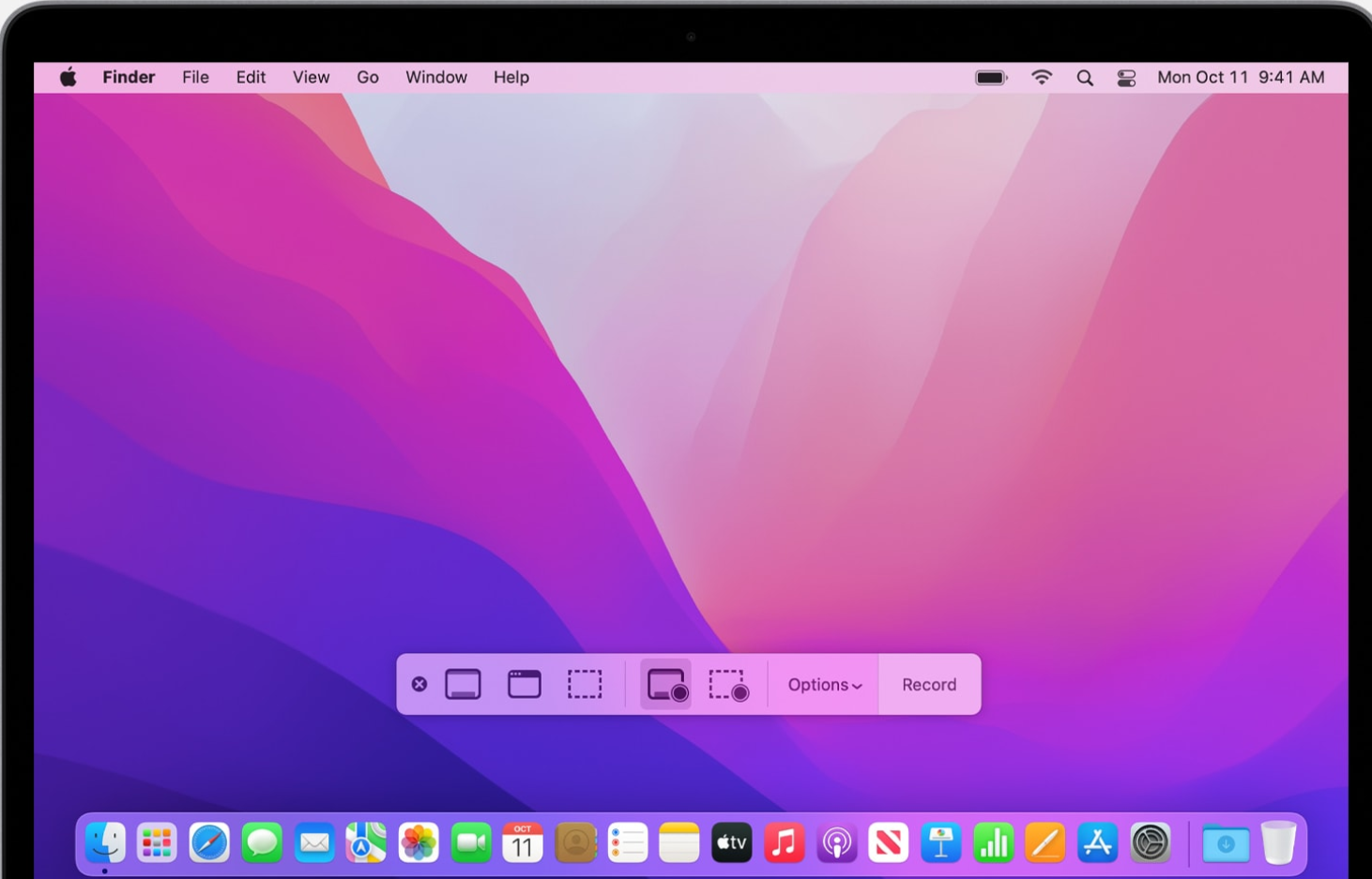
The primary way most people record their screens on a Mac is using the built-in Screenshot and Screen Recording utility. You know, the one you bring up with that handy keyboard shortcut: Command + Shift + 5.
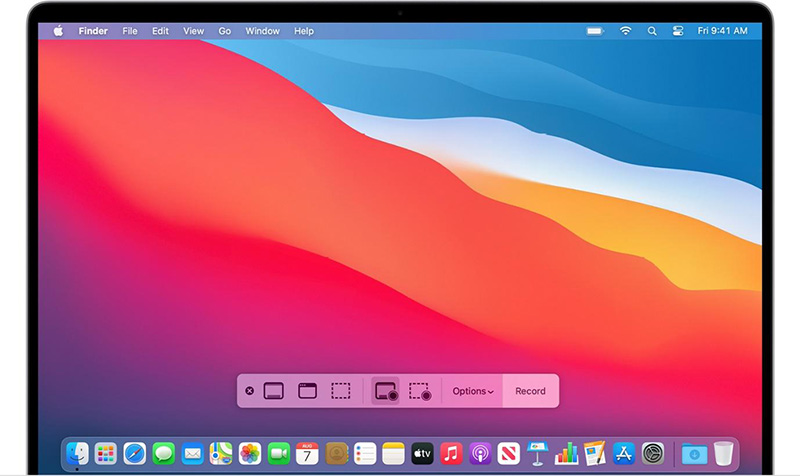
When you press that combo, a little toolbar pops up at the bottom of your screen. This is your control center for all things visual capture. And right there, in that toolbar, is a little gem called "Options".
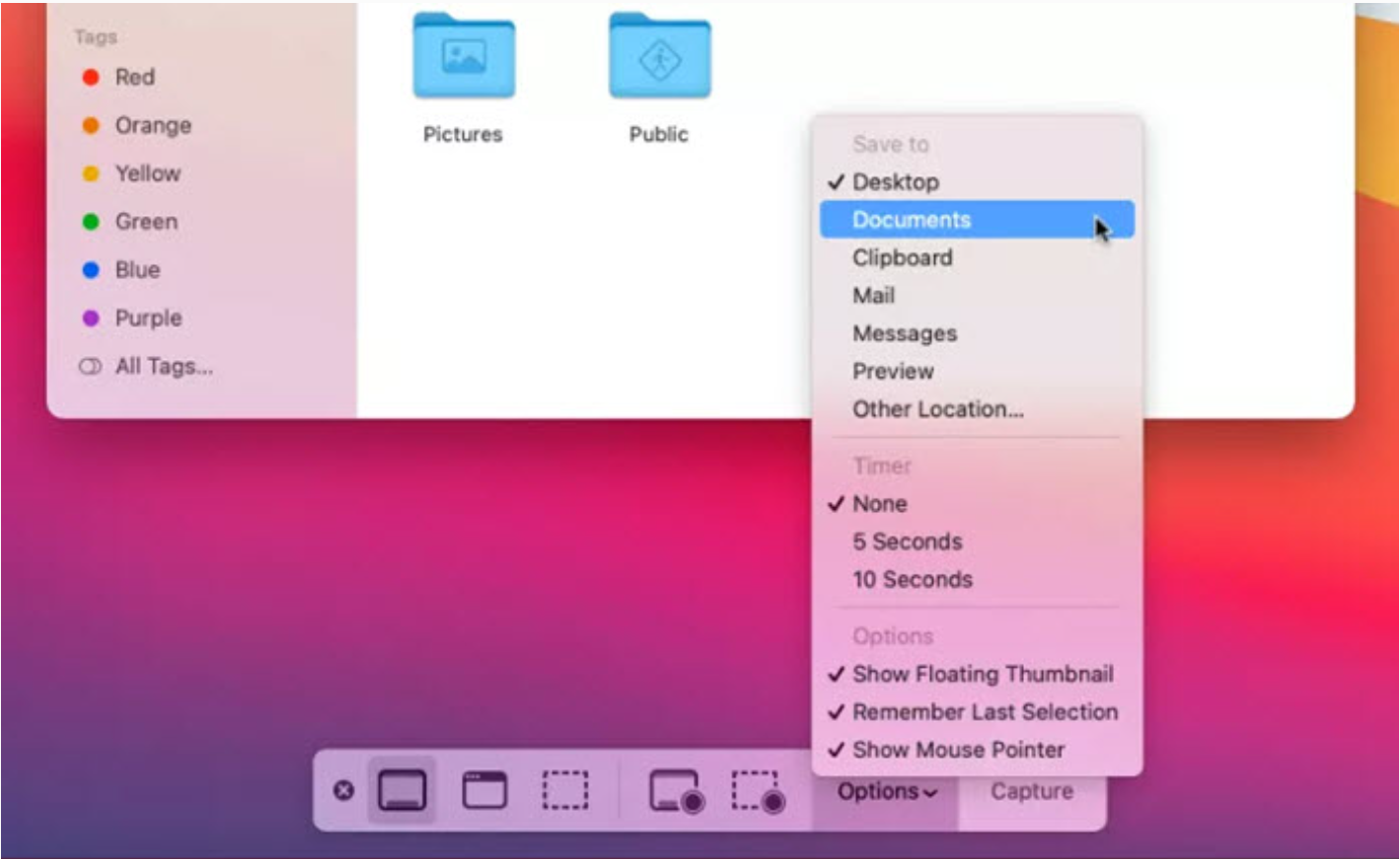
Click on "Options", and you’ll see a dropdown menu. See that line that says "Save to"? This is your secret key! By default, it’s usually set to "Desktop". But here's the fun part: you can change it!
Choosing Your Own Adventure: Custom Save Locations
This is where the real power lies. macOS is wonderfully flexible, and it lets you choose where your screen recordings go. Maybe you have a dedicated "Video Projects" folder. Or perhaps you prefer to save everything related to a specific task in a particular project folder. You can totally do that!
In the "Save to" options, you can select from predefined locations like "Documents", "Movies", or even "Desktop". But you can also go a step further and choose "Other Location...". This opens up a finder window, allowing you to navigate to any folder on your Mac.
Imagine this: you're working on a tutorial for your YouTube channel. You can set your screen recording to save directly into your "YouTube Tutorials" folder. No more hunting required! It’s like having a personal assistant who automatically files everything for you.
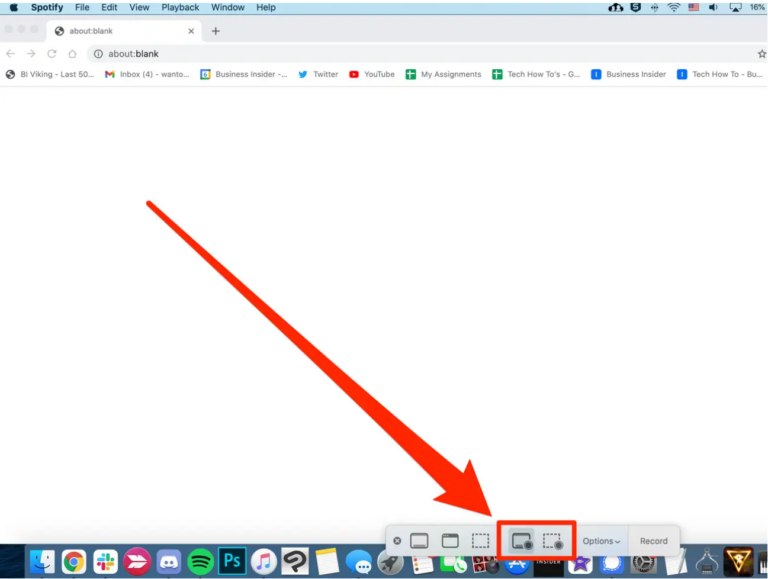
So, if your recordings aren't on your Desktop, the first thing to check is that Command + Shift + 5 toolbar and its "Options" menu. It’s the most common reason for a recording to be "missing."
Beyond the Built-in: Third-Party Apps and Their Habits
What if you're not using the built-in macOS tools? There are tons of fantastic third-party apps out there that offer even more features for screen recording. Think apps like OBS Studio, ScreenFlow, Loom, and many others. Each of these apps has its own way of handling saved files.
Generally, these apps will either:
- Prompt you to save: After you stop recording, they'll pop up a "Save As" dialog box, giving you the chance to choose a name and location for your file.
- Have a default save location within the app: Many have a dedicated library or output folder within the app itself. You might need to open the app to find your recordings.
- Allow you to set a default in their preferences: Just like the built-in tool, most third-party apps let you customize where your recordings go in their settings.
If you’re using one of these apps, your best bet is to check the app’s preferences or settings. Look for sections labeled "Output," "Saving," "Files," or "General." It’s usually pretty straightforward once you know where to look.
Why This Matters (Besides Not Losing Your Videos!)
Knowing where your screen recordings go isn't just about avoiding frustration. It’s about being a more efficient and organized digital citizen. When you can quickly locate your recordings, you can:
- Edit them faster: No more wasting time searching before you can jump into iMovie or Final Cut Pro.
- Share them easily: Whether it's sending a quick explanation to a colleague or uploading a polished tutorial, accessibility is key.
- Keep your Mac tidy: By directing recordings to specific folders, you prevent your Desktop from becoming a chaotic graveyard of forgotten video files. Imagine your Desktop as a clean, minimalist art gallery instead of a cluttered garage sale!
It’s all about working smarter, not harder. And with macOS, the tools are right there, waiting for you to explore and customize.
A Quick Recap: Your Screen Recording Sherlock Holmes Guide
So, to recap our little expedition:
- Default for built-in tool: Check your Desktop first! Look for a file named like "Screen Recording [date] at [time].mov".
- Customizing the built-in tool: Press Command + Shift + 5, click "Options", and check the "Save to" location. You can change it to anything you like!
- Third-party apps: Look within the app's preferences or settings for their default save location or options to customize it.
See? It’s not some arcane magic. It’s just a feature designed to give you control. The next time you record your screen, you'll know exactly where to look, or even better, where you want it to go from the start. Happy recording, and may your digital adventures always be easily found!