
Where Do I Find A Printer Ip Address

Okay, so you're trying to print something, right? Like, you really need that document now, and your computer is giving you the silent treatment. Or maybe you're trying to set up a new printer, or troubleshoot a grumpy one. Whatever the reason, you've probably hit a wall, and that wall is likely asking for something called an "IP address."
What even is an IP address for a printer, you ask? Think of it like your printer's home address on your network. It's how your computer, your phone, your tablet – all those fancy gadgets – know exactly where to send their print jobs. Without it, your printer is basically lost in the digital ether, like a carrier pigeon without a post office.
And honestly, finding that little string of numbers can feel like searching for a unicorn in a disco. You're poking around, clicking buttons, and suddenly you're drowning in a sea of technical jargon. Don't worry, my friend, you're not alone! We've all been there. It's a rite of passage in the printing world, I swear.
So, Where's This Elusive Printer IP Address Hiding?
Alright, let's dive in. The good news is, there are a bunch of ways to track down this digital address. We’ll go through them one by one, and hopefully, one of these methods will be your printing salvation. Get ready to become an IP address detective!
The Printer's Own Display (If It Has One!)
This is often the easiest, most straightforward method. Does your printer have a little screen on it? Like, a fancy LCD panel that shows menus and stuff? If so, you're in luck! Seriously, this is the printer equivalent of asking the person directly.
Most printers with displays will have a menu for network settings, or sometimes it's tucked away under a "System," "Setup," or "Information" section. You'll be looking for something that says "TCP/IP," "Network Settings," "Wi-Fi Status," or even just "IP Address." Navigate through the menus like you're playing a video game (but with less dying, hopefully).
You might have to click around a bit. Sometimes it's hidden under a sub-menu, like a secret level in Mario. Keep an eye out for anything that looks remotely like network configuration. And when you find it, poof! There it is. A beautiful string of numbers separated by dots, like 192.168.1.100. Ta-da!
The Router Knows All
Ah, the router. The unsung hero of your home network. This little box is basically the traffic cop for all your internet-connected devices. It assigns IP addresses to everything, so it definitely knows your printer's address. This is like asking the mayor for someone's address – they usually keep a directory.

To access your router's settings, you'll usually need to open a web browser on your computer. Then, you'll type in the router's IP address. This is also an IP address, but it's the address of your router itself! Common ones are 192.168.1.1 or 192.168.0.1. If you're not sure, check the sticker on your router, or give your internet provider a friendly call.
Once you're in the router's admin page (you might need a password, which is also often on a sticker on the router – seriously, they think of everything!), look for a section called "Connected Devices," "DHCP Clients," "Client List," or something similar. It will be a list of all the devices currently talking to your router. Scan this list for your printer's name. It might say "HP_Printer," "Brother_Inkjet," or whatever model you have. Next to its name, you should see its assigned IP address. Bingo!
Print a Network Configuration Page
Some printers are just little information junkies. They love to print out pages about themselves. And one of the most useful pages they can print is a "Network Configuration Page" or "Network Status Sheet." This is like your printer handing you a business card with all its vital stats.
How do you get this magical page? Again, this usually involves the printer's own display. Look in the menus for something like "Reports," "Information Pages," or "Print Network Settings." Sometimes, you might have to hold down a specific button or combination of buttons on the printer for a few seconds. Consult your printer's manual (I know, I know, the dreaded manual!) if you're stuck.
Once you print it, scan that page carefully. Somewhere on there, in glorious digital ink, will be your printer's IP address. It's usually clearly labeled. This is probably the most direct way to get the info straight from the horse's mouth, as they say.
Check Your Computer's Printer Settings
Even if your printer is connected to your network, your computer has a record of it. This is like your computer keeping a little address book for all the people it talks to.

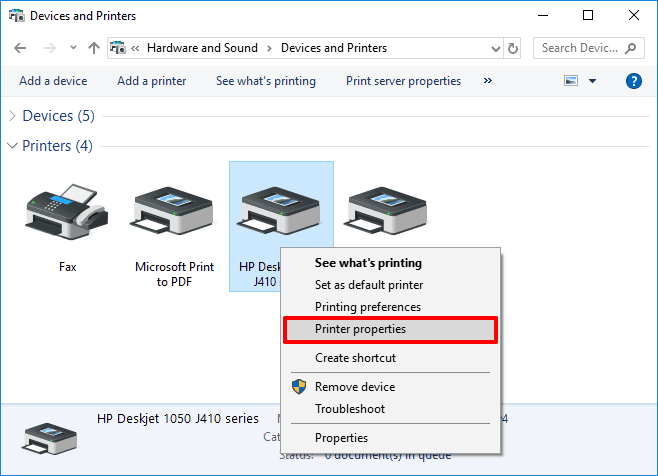
On Windows, you'll want to go to your "Printers & Scanners" settings. You can usually find this by typing "printers" into the Windows search bar. Once you're in there, click on your printer from the list. Then, look for "Printer properties" or "Manage."
In the printer properties window, there are a few places it might be hiding. Look for a "Ports" tab. This tab shows how your computer is communicating with the printer. If it's connected via the network, you'll likely see a "Standard TCP/IP Port" listed. Click on that port, and then click the "Configure Port" button. Voila! The IP address should be displayed there. Sometimes it's under a "General" tab or a "Sharing" tab, depending on how it was set up.
On a Mac, it's a similar story. Go to "System Preferences" (or "System Settings" on newer versions) and then click on "Printers & Scanners." Select your printer from the list. You might need to click on the "Options & Supplies" button, or it might be directly visible in the main printer window. Look for a field that says "Location" or something similar that might contain the IP address, or you might have to go into the port settings, which can be a bit more buried.
Use Network Scanning Tools
This is for the more adventurous souls, the digital Indiana Joneses among us. There are apps and software designed to scan your network and show you everything that's connected. They're like little digital bloodhounds sniffing out your devices.
Popular free options include "Advanced IP Scanner" for Windows or "Fing" which is available for both desktop and mobile. These tools will list all the devices on your network, their IP addresses, and often their manufacturer or device name. So, you can just scan, look for your printer's name, and there you have it!
:max_bytes(150000):strip_icc()/003_find-printer-ip-address-4176356-f3cb86a611014263a01f3da6ea619800.jpg)
It's a great way to get a comprehensive overview of your network. Plus, it feels pretty cool to be using a "scanner" like a secret agent. Just try not to get too carried away and start looking for hidden cameras.
A Few Extra Tips to Make Your Life Easier
Finding the IP address is one thing, but keeping track of it can be another. Here are a few things to keep in mind:
Printers Can Get New Addresses (The Dreaded Dynamic IP)
Most of the time, your router assigns IP addresses dynamically. This means it can change from time to time, especially if you turn your printer or router off and on. This is like your printer moving houses! It's usually not a big deal, but if you've manually entered the IP address somewhere and it suddenly stops working, this might be why.
Static IP to the Rescue!
If you're tired of chasing your printer's IP address, you can often set a static IP address. This is like giving your printer a permanent, reserved parking spot on your network. You usually do this through your router's settings or sometimes through the printer's own advanced network settings.
You'll pick an IP address that's outside the range your router typically assigns dynamically, but still within your network's subnet (like if your router assigns 192.168.1.2 to 192.168.1.100, you might set your printer to 192.168.1.200). This can be a bit more technical, so if you're not comfortable, maybe ask a tech-savvy friend for help. But once it's set, it's set!
When in Doubt, Reboot!
Honestly, sometimes the simplest solution is to just turn your printer off, wait a few seconds, and turn it back on. And while you're at it, give your router a quick reboot too (unplug it, wait 30 seconds, plug it back in). It's like giving them a little digital nap. Often, after they wake up, things just start working again, and the IP address might even show up more readily.
Consult the Sacred Texts (The Manual)
Okay, I know I mentioned it before, but if all else fails, your printer's manual is your best friend. It's designed to tell you all the ins and outs of your specific model. You can usually find a PDF version online if you've long since misplaced the paper one. Seriously, it's worth a look.
So there you have it! A whirlwind tour of finding your printer's IP address. It might seem a bit daunting at first, but with these tips, you'll be an IP address hunter extraordinaire in no time. Now go forth and print! May your ink cartridges be ever full and your print jobs be ever successful. Happy printing!