
How Do You Recall A Sent Email In Outlook
Ever sent an email and immediately thought, "Oops, did I just hit send on that?" It’s a feeling most of us know all too well! Thankfully, for Outlook users, there’s a little bit of magic tucked away that lets you recall a sent email. Think of it as a digital "undo" button for those moments of panic. It's a surprisingly popular feature, not just for professionals, but for anyone who's ever wished they could snatch back a message before it’s too late.
For beginners just getting comfortable with email, knowing you have this option can be incredibly reassuring. It means a minor typo or an accidental send doesn't have to be a big deal. Families can use it to quickly correct a message meant for a loved one, like sending a recipe with the wrong ingredient or a reminder with the wrong date. Hobbyists, whether they’re organizing a club meeting or sharing a passion project, can ensure their communications are always clear and accurate, preventing any misunderstandings.
So, how does this email retrieval work? Essentially, when you recall an email, Outlook attempts to pull back the message from the recipient’s inbox before they’ve had a chance to read it. It’s not a foolproof system, but it works in many situations. You might have a few variations to consider: you can try to recall the message and delete it entirely, or you can try to recall and replace it with an edited version. This replacement option is especially handy if you’ve forgotten an attachment or noticed a crucial detail missing.
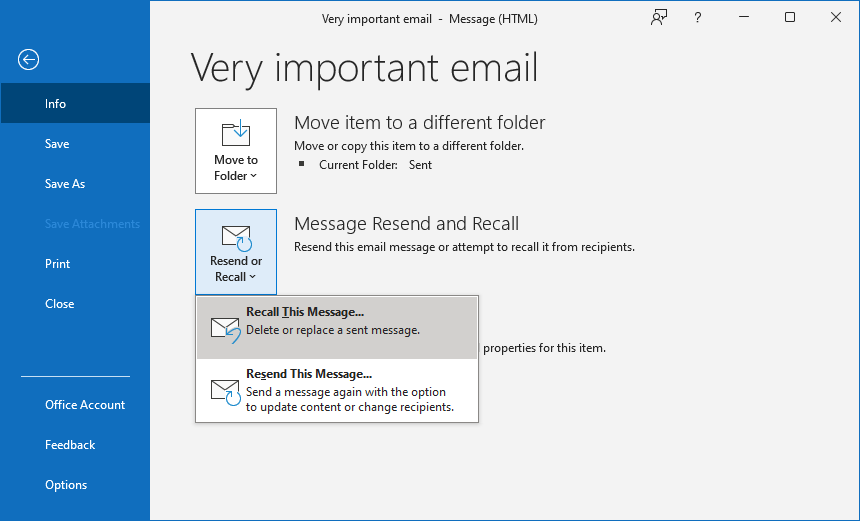
Getting started with recalling an email is actually quite simple. Here’s a quick rundown for when that "oh no!" moment strikes: First, go to your Sent Items folder. Find the email you want to recall and double-click it to open it in its own window. Next, look for the Move group on the ribbon, usually at the top of the Outlook window. Click on Actions, and then select Recall This Message. You’ll then be presented with the options to either "Delete unread copies of this message" or "Delete unread copies and replace message with a new message." Choose the one that suits your needs and click OK. You might also want to check the box that says "Tell me if recall succeeds or fails for each recipient" – this gives you valuable feedback.
It’s important to remember that this feature works best when both you and the recipient are using Outlook on the same Exchange server (common in work or school environments). If the recipient has already read the email, or if they’re using a different email service, the recall might not be successful. But even with these limitations, it's a fantastic tool to have in your digital arsenal. It adds a layer of confidence to your email sending, knowing you have a little safety net. So go ahead, give it a try the next time you send a message – it’s a genuinely useful skill to master!